
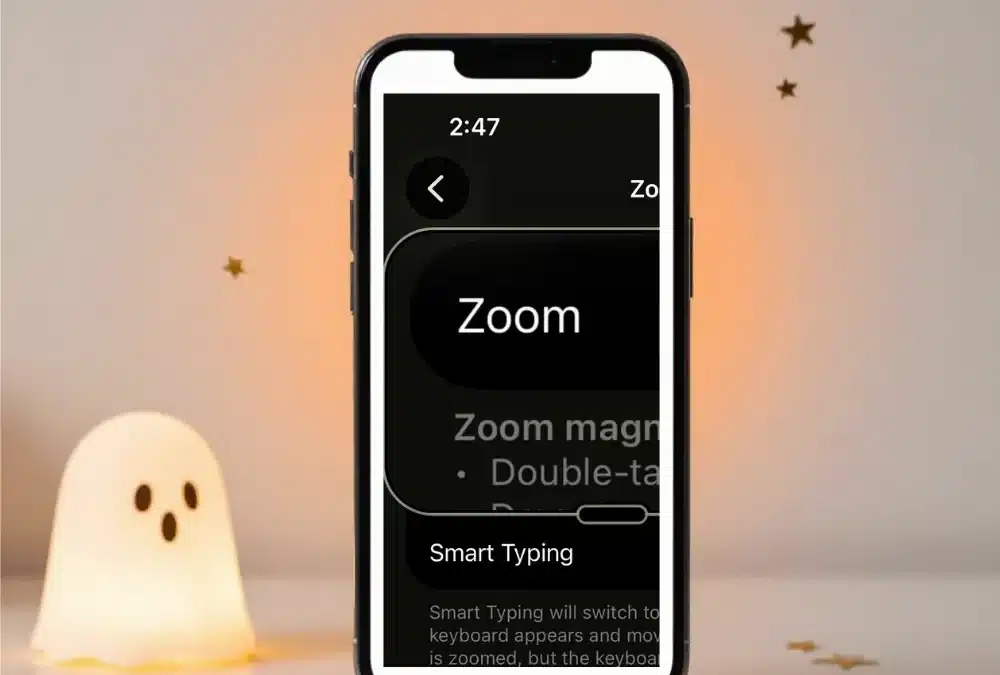
Scary Good iPhone Hacks for Low Vision
If you or someone you love struggles with low vision, your iPhone holds a treasure trove of tools to help with everyday tasks. Apple has quietly built a powerful suite of accessibility tools directly into iOS, and most of them work across models released in the last several years. These features are designed to make text easier to read, navigation more intuitive, and daily tasks far less frustrating. Here are seven hacks that can transform your iPhone experience.
iPhone Hacks At-a-Glance
Screenshots and Apple support links are included for reference under each section.
1. Magnification Features
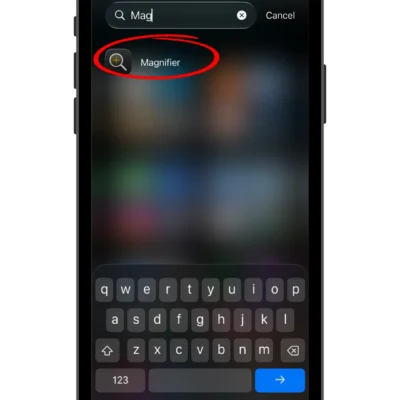
One of the simplest ways to make your iPhone more usable is through its built-in magnification tools. The Magnifier app turns your iPhone into a digital magnifying glass, letting you point your camera at small text or objects and instantly enlarge them on screen. You can even adjust brightness, contrast, and apply filters for specific lighting conditions.
To enable it, simply open the Magnifier app. You can also set up a shortcut by going to Settings > Accessibility > Accessibility Shortcut and selecting Magnifier so that a checkmark appears next to it. Once activated, triple-click the side button (or Home button on older models) to launch it instantly. (See no. 6 below for more on shortcuts.)
Beyond the app itself, you can increase text size across your entire iPhone by navigating to Settings > Display & Brightness > Text Size, where a simple slider lets you make fonts larger in Mail, Messages, Contacts, and most other apps. For an even bigger boost, enable Larger Accessibility Sizes under Settings > Accessibility > Display & Text Size. Full instructions are available at Apple support.
2. Voice Control & Accessibility
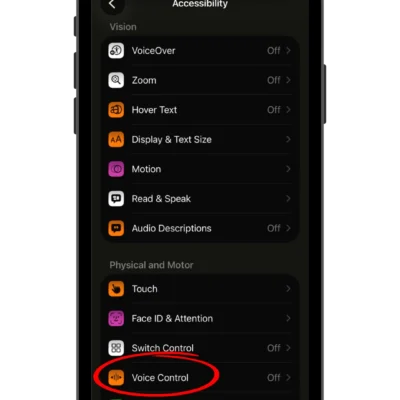 If reading small text is a challenge, let your iPhone do the talking. Voice Control allows you to navigate your entire device using spoken commands, no screen interaction required. You can open apps, scroll through pages, and dictate text just by speaking.
To turn it on, head to Settings > Accessibility > Voice Control and select “Set Up Voice Control.” It works beautifully alongside Speak Screen, a feature that reads aloud any content currently displayed, whether that’s a webpage, email, or e-book. Enable it under Settings > Accessibility > Read & Speak > Speak Screen, then simply swipe down with two fingers from the top of the screen to activate it anytime.
Together, these tools mean you can consume information hands-free and stay independent throughout your day. Step-by-step guidance is available at Apple support.
3. High Contrast & Color Filters
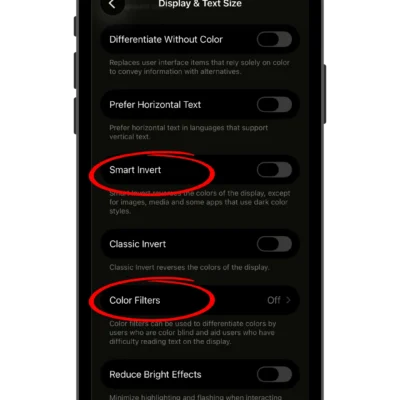 Sometimes the problem isn’t size, it’s contrast. Smart Invert and Classic Invert flip your iPhone’s color scheme to make text pop against the background, which can dramatically improve readability for users with low vision. Smart Invert is particularly handy because it keeps images, photos, and app icons in their original colors while inverting everything else.
You’ll find these options under Settings > Accessibility > Display & Text Size > Smart Invert (or Classic Invert).
If straight inversion feels jarring, color filters offer a gentler alternative. These adjust the overall color palette of your screen to reduce eye strain, particularly helpful in bright or artificial lighting. Enable them at Settings > Accessibility > Display & Text Size > Color Filters, then experiment with grayscale, red/green, or blue/yellow options to find what works best for your eyes. Visit Apple support for more details.
4. Zoom Settings
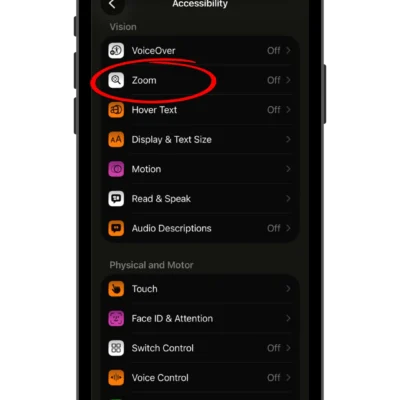 Zoom is one of the most versatile accessibility tools on iPhone, and it works independently of the Magnifier app. Full-screen zoom lets you enlarge your entire display with a simple triple-tap using three fingers, then pan around by dragging three fingers across the screen.
For more targeted magnification, the Zoom Window feature creates a floating lens you can move around the screen, enlarging only the content underneath it while leaving the rest of your display untouched. This is especially useful when you only need to zero in on a specific area, like a recipe step or a form field, without losing context of the whole page.
Activate Zoom under Settings > Accessibility > Zoom, then toggle it on and choose your preferred zoom region in the settings menu. Full setup instructions are available at Apple support
5. Reduce Motion & Visual Effects
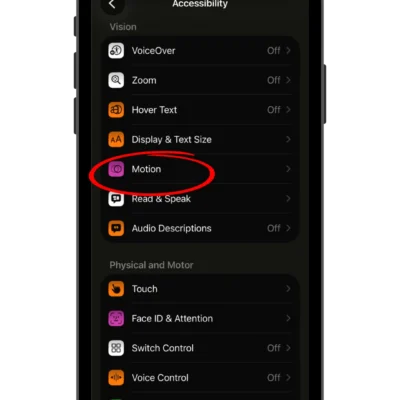 Flashy animations and transitions might look sleek, but for users with low vision, they can cause real discomfort or disorientation. Thankfully, your iPhone lets you tone things down considerably.
Head to Settings > Accessibility > Motion and toggle on “Reduce Motion” to minimize the parallax effect and animated transitions between apps and screens. You can also disable auto-playing message effects and video previews in the same menu for an even calmer experience.
For a cleaner visual layout overall, consider turning on “Reduce Transparency” under Settings > Accessibility > Display & Text Size, which makes backgrounds more solid and easier to distinguish from foreground text. These small adjustments add up to a noticeably more comfortable and navigable interface.
For more on motion reduction, visit Apple support.
6. Custom Shortcuts & Voice Commands
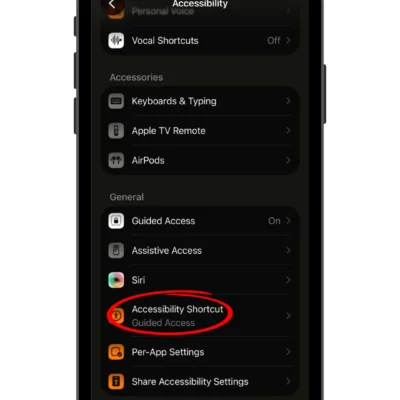 Why dig through menus every time when you can jump straight to your favorite accessibility features? Accessibility Shortcut lets you assign a triple-click of the side (or Home) button to instantly toggle tools like VoiceOver, Zoom, or Color Filters.
Set this up under Settings > Accessibility > Accessibility Shortcut, then select the features you use most.
For even faster access, pair this with custom voice commands. Go to Settings > Accessibility > Vocal Shortcuts to teach your phone to recognize a custom phrase that helps you quickly perform an action. Custom voice commands can save precious time and reduce frustration, especially during moments when quick access matters most. Learn more at Apple support.
7. Screen Reader Features
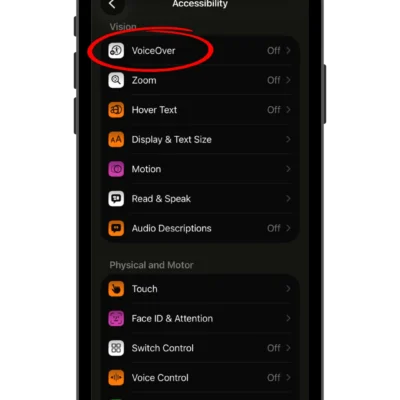 VoiceOver is arguably the most comprehensive accessibility tool on iPhone. This built-in screen reader describes everything on your display aloud, from app icons to button labels to entire paragraphs of text, allowing you to navigate your device almost entirely by sound and touch gestures.
Turn it on at Settings > Accessibility > VoiceOver. Once active, a single tap selects an item and reads it aloud, while a double-tap activates it. It takes a little practice to get comfortable with the gesture system, but Apple provides a built-in VoiceOver Practice mode to help you learn at your own pace.
You can also fine-tune VoiceOver’s speaking rate, verbosity, and pitch under the same menu, ensuring the experience feels natural and suited to your preferences. Detailed walkthroughs are available at Apple support.
Your iPhone, Your Way
Living with low vision doesn’t mean missing out on everything your iPhone has to offer. These accessibility features work independently or together, giving you the flexibility to build a frustration-free experience that fits your specific needs. Try combining Magnifier with Voice Control, or pair Smart Invert with custom shortcuts, until you find the setup that feels most natural to you.
Take a few minutes today to explore your Accessibility settings. A handful of small adjustments could make a world of difference in how confidently and independently you use your iPhone every single day.
P.S. Did we miss your favorite hack? Drop a comment to let us know — and help others make the most of their iPhone!
Note: For the most detailed and up-to-date information, visit Apple support. Here, you can select your iOS version and then open the Table of Contents to navigate to the specific accessibility features that interest you. To find your iOS version, open Settings > General > About on your phone.
Last updated October 30, 2026.
Author Information
Reviewed by Stuart Flom, AdaptiVision Founder & President

Source
Apple Support. (n.d.). IPhone – Official Apple Support. https://support.apple.com/iphone


